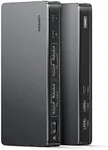
Buying Guide for the Best Macbook Pro Dual Monitor Dock
Choosing a dock for connecting a MacBook Pro to dual monitors can make your workspace more efficient and organized. The right dock will allow you to connect multiple displays, as well as other devices like keyboards, mice, and external drives, all through a single connection to your MacBook Pro. When picking a dock, it's important to consider how it will fit into your workflow, what types of monitors you have, and what other devices you want to connect. Understanding the key specifications will help you find a dock that meets your needs and ensures a smooth, reliable experience.Number and Type of Display OutputsThis specification tells you how many monitors you can connect and what kind of ports are available, such as HDMI, DisplayPort, or USB-C. It's important because not all docks support two external monitors, and the type of port determines compatibility with your monitors. Some docks offer two HDMI ports, others might have a mix of HDMI and DisplayPort, or even USB-C video outputs. If you have two monitors with HDMI inputs, a dock with two HDMI ports is ideal. If your monitors use DisplayPort, look for a dock with matching outputs. Always check your monitors' inputs and match them with the dock's outputs to avoid needing extra adapters.
MacBook Pro CompatibilityNot all docks work with every MacBook Pro model, especially since Apple has changed ports and internal hardware over the years. This spec is important because some docks are designed for Intel-based MacBooks, while others are optimized for Apple Silicon (M1, M2, etc.). Some newer MacBooks have limitations on how many external displays they support. To pick the right dock, check your MacBook Pro's model and year, and make sure the dock specifically lists compatibility with your device. This ensures all features, especially dual monitor support, will work as expected.
Power Delivery (Charging Capability)Power delivery refers to the dock's ability to charge your MacBook Pro while it's connected. This is important because it lets you use a single cable for both data and charging, keeping your desk tidy. Docks offer different power delivery wattages, usually ranging from 60W to 100W. If you have a larger MacBook Pro (like the 16-inch), you'll want a dock that can deliver higher wattage to keep your laptop charged during heavy use. For smaller models, lower wattage may be sufficient. Always check your MacBook's recommended charging wattage and choose a dock that meets or exceeds it.
Data Ports and ConnectivityThis spec covers the number and types of extra ports on the dock, such as USB-A, USB-C, Ethernet, SD card readers, and audio jacks. It's important because it determines what other devices you can connect, like external hard drives, keyboards, mice, or wired internet. Some docks offer a wide variety of ports, while others focus mainly on display outputs. Think about what devices you use regularly and make sure the dock has enough of the right ports to support them. If you need fast data transfer, look for docks with USB 3.0 or higher.
Supported Display Resolution and Refresh RateThis specification tells you the maximum quality of video output the dock can handle for each monitor, such as 4K at 60Hz or 1080p at 60Hz. It's important because it affects how sharp and smooth your displays will look. If you have high-resolution monitors, you'll want a dock that supports 4K at 60Hz for both screens. If you use standard HD monitors, a dock that supports 1080p is sufficient. Match the dock's capabilities to your monitors' maximum resolution and refresh rate for the best experience.
Dock Form Factor (Size and Placement)The form factor refers to the physical size and shape of the dock, as well as how it connects to your MacBook Pro (cable or direct plug-in). This is important for desk organization and portability. Some docks are compact and portable, ideal for travel or small desks, while others are larger and designed to stay in one place. Consider where you'll use the dock most often and whether you need something easy to move or a more permanent setup.
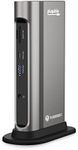
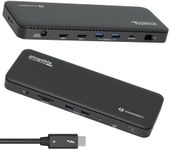

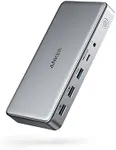


![Spigen ArcDock Pro 14 in 1 8K Docking Station,Triple Dual Monitor Hub 4K HDMI DP Thunderbolt 4 Dock USB4 96W Micro/SD 4.0 Ethernet for MacBook Pro/Air/M1/M2 Windows[USB C Cable, Adaptor Included]](https://images-proxy.bestreviews.guide/gNgAuI8bbKD_MglMVz5-6tmxYFE=/0x150/https://m.media-amazon.com/images/I/41yqqSual5L._AC_CX679_.jpg)